What exactly is eGCA, and why does every aspiring pilot in India need to deal with it? eGCA, short for Electronic Governance of Civil Aviation, is the official DGCA portal that manages pilot profiles, medical records, exam applications, and licence services entirely online. Before you can book a Class 1 or Class 2 medical, register for DGCA exams, or track your flight training, an eGCA login is the one thing you cannot skip.
It replaced the older paper-based system, and today it's the single digital identity that follows a pilot through their entire career, from the first ground school enrolment to CPL issuance. Most delays at this stage come down to rushing the eGCA registration itself, missing a document or mismatching a name across records, so it's worth getting right the first time.
What Is the eGCA Portal?
The eGCA portal is DGCA's central digital system, built to replace manual, paper-heavy processes with something that can actually be tracked online. Every pilot, aviation medical examiner, and training institute in India now operates through this one platform.
Through eGCA, users can apply for Class 1 medical and Class 2 medical, register for DGCA exams, track flight training and logbook updates, and apply for or renew licences, including the CPL. It also handles services for AMEs and training institutes, not just individual pilots. No matter the stage of the journey you're at, this portal is where the paperwork actually happens.
Documents You'll Need Before Registering
Getting your documents ready beforehand saves a fair amount of back-and-forth later, since incomplete or poor-quality uploads are one of the most common reasons applications stall.
Identity proof (choose one):
- Driving License
- Passport
- Airport Entry Card, issued by BCAS
- Voter ID
- Dependent Card issued by Defense Organization
- Ration Card, if the candidate's photograph is printed on it
- Central/State Govt. Health Cards with photograph of the candidate printed on it
- PAN Card
- Service Identity Cards with photograph, issued to employees by Central/State Govt./PSUs/Public Limited Companies
- Health Insurance Smart Card issued under the scheme of Ministry of Labour
- Photo Passbook of a running Bank Account (Scheduled Public Sector, Private Sector, or Regional Rural Banks only)
Address proof (choose one):
- Telephone Bill
- Electricity Bill
- Passport
- Water Bill
- Income Tax Assessment Order
- Election Commission Photo ID card
- Proof of Gas Connection
- Parent's passport copy, first and last page (for minors)
- Rent Agreement
- Photo Passbook of a running Bank Account (Scheduled Public Sector, Private Sector, or Regional Rural Banks only)
- Certificate issued by Central Govt/State Govt/Armed Forces
You'll also need a passport-size photograph, a scanned signature, and your 10th marksheet or certificate, each with its own specific format and sizing rules covered in the registration steps below.
Note - File format: PDF or JPG only, scanned clearly and kept within the portal's size limits.
How to Register and Create Your eGCA ID
Registration and login are two separate actions on the same portal, and it helps to walk through registration properly the first time rather than fixing avoidable mistakes afterwards. This walkthrough follows DGCA's own Process for Pilot Registration, so you can refer to it directly if needed. Here's how to create an eGCA account:
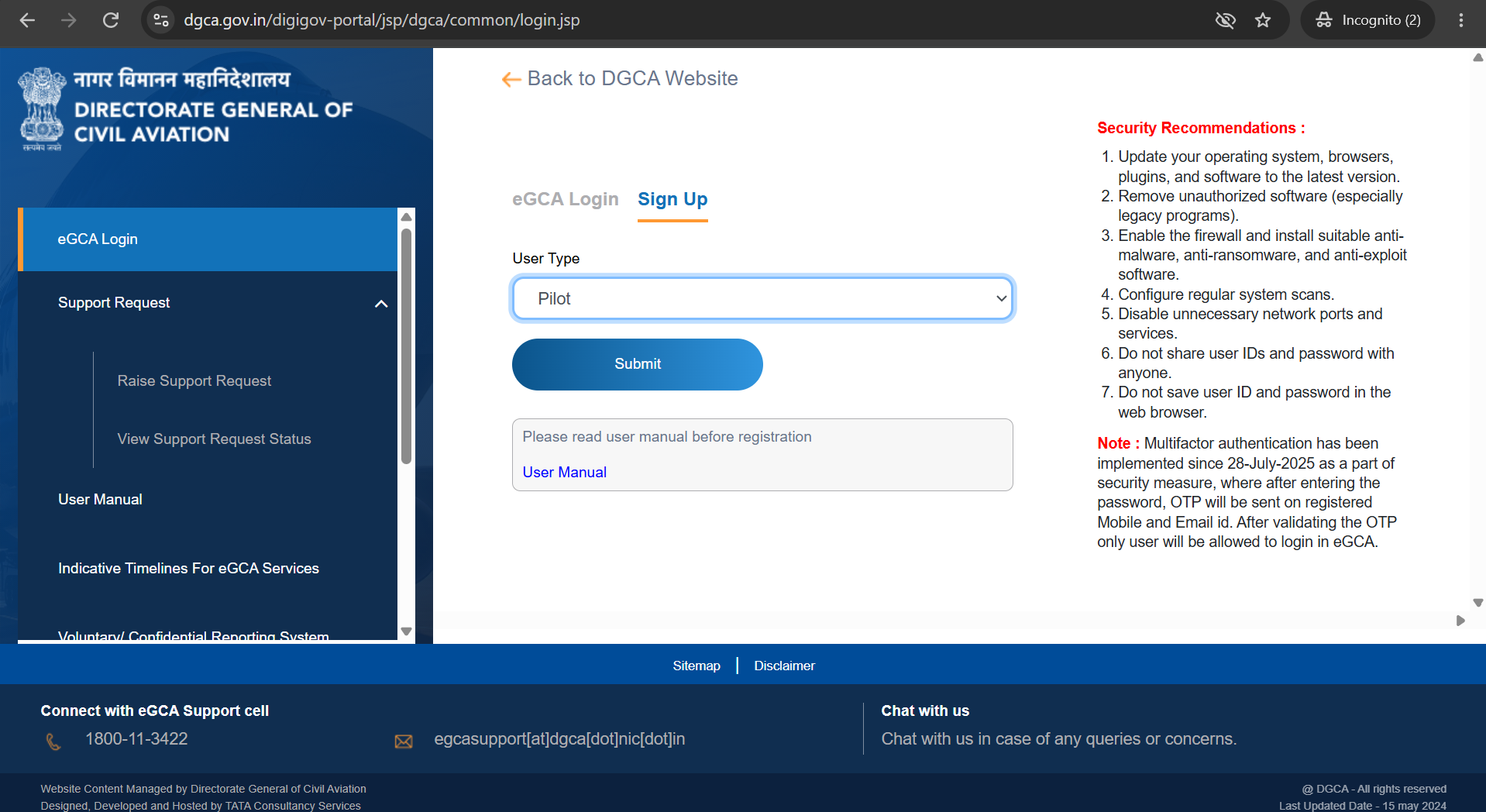
Step 1: Choosing the Right User Type (Aspirant, Pilot, AME, Training Institute)
Step 2: Do You Have a PMR Number?
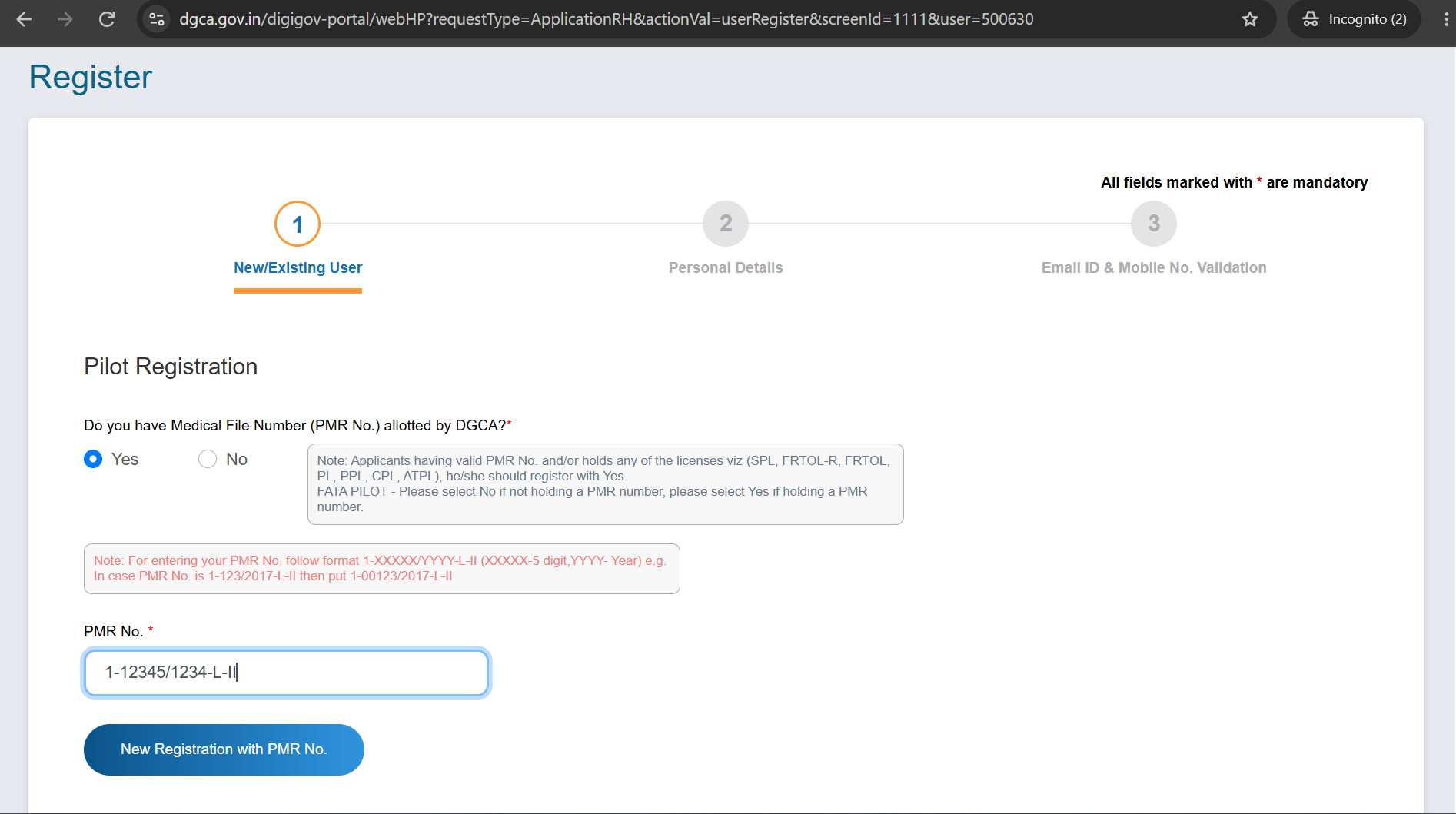
Note: As a rule of thumb, anyone holding a valid PMR number or any existing licence, SPL, FRTOL-R, FRTOL, PL, PPL, CPL, or ATPL, should register with "Yes" on the PMR question. FATA (Foreign Aircrew Temporary Authorisation, issued to foreign pilots working for Indian airlines) pilots without a PMR number should select "No."
Step 3: Adding Your Personal Details and Address
Part 1: Personal Details
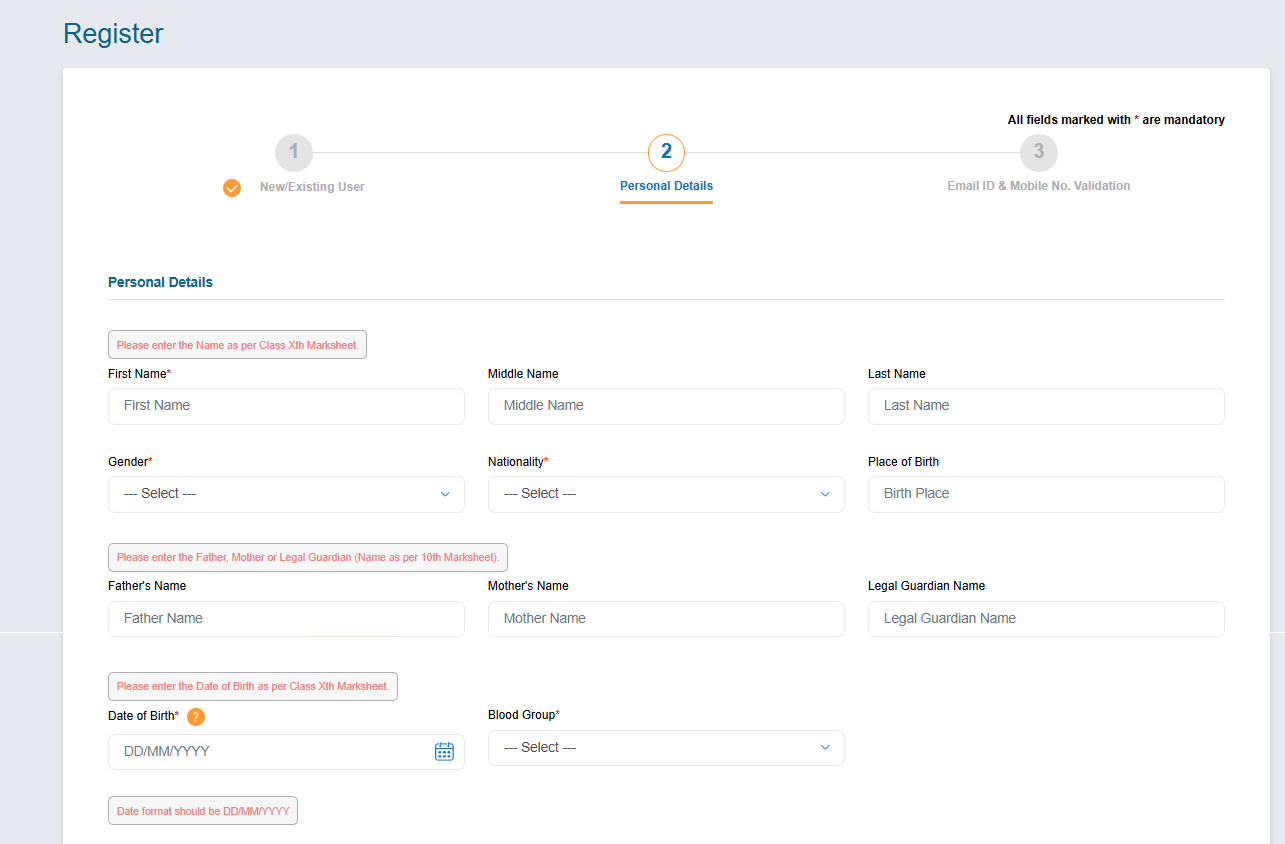
Note: Your name and date of birth must match your Class 10th marksheet exactly, right down to spelling and format. The portal actively warns you about this on the form itself, and it's one of the most common causes of verification issues later, so it's worth double-checking before moving on.
Part 2: Correspondence and Permanent Address
Fill in your correspondence address and permanent address, including country, state, address lines, and PIN code. If both addresses are the same, tick "Same as Correspondence Address" to skip retyping it.
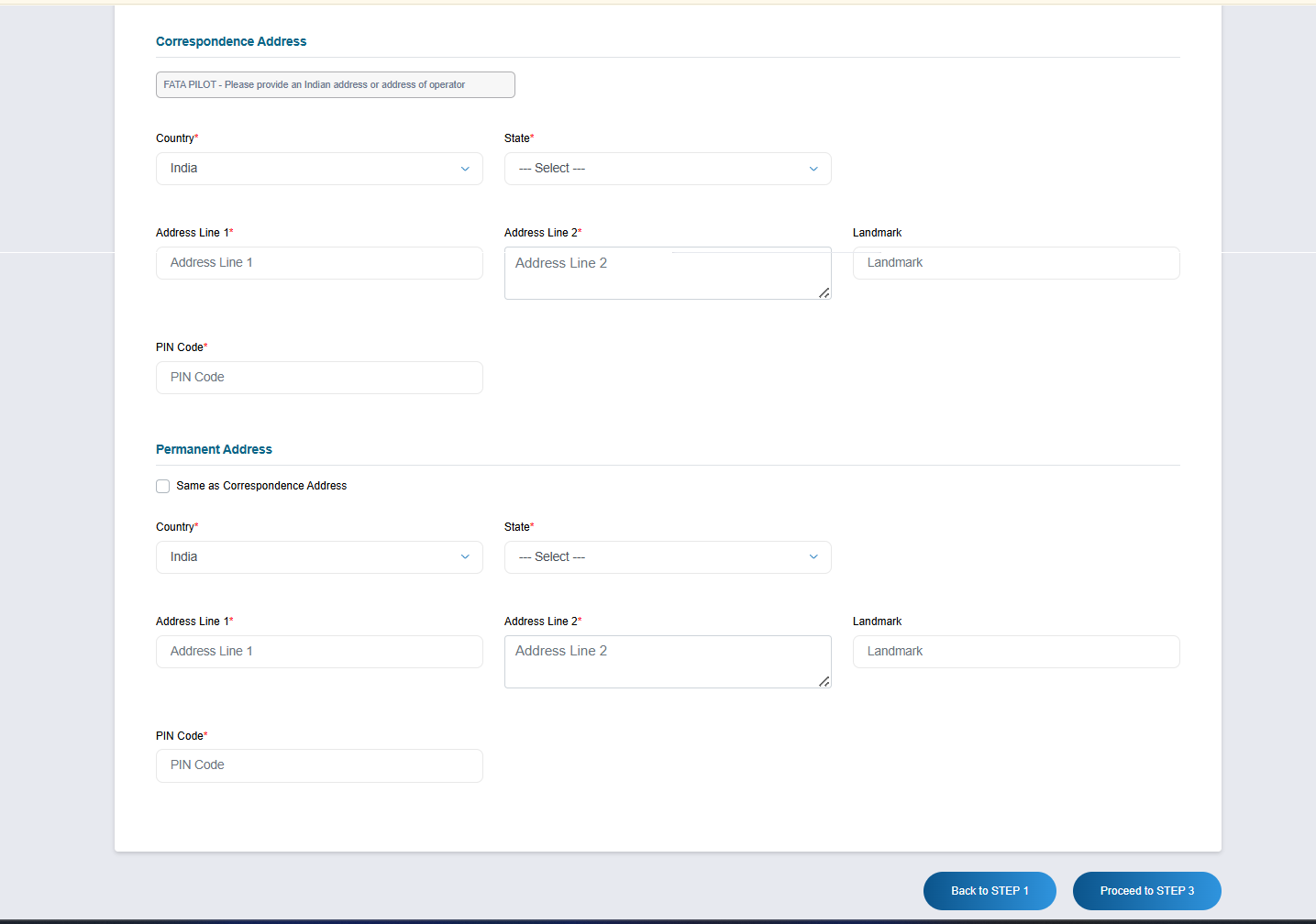
Note: FATA pilots need to provide either an Indian address or the address of their operator here. Everyone else should double-check their PIN code carefully, since an incorrect one can cause address-proof mismatches later in the verification process.
Step 4: Uploading Your Documents and Verifying Your Details
This is the longest part of the form, since it's where all your paperwork actually goes in. Take your time here - most rejections and delays trace back to something in this step.
Part 1: ID Proof Details
Pick your ID type from the dropdown:
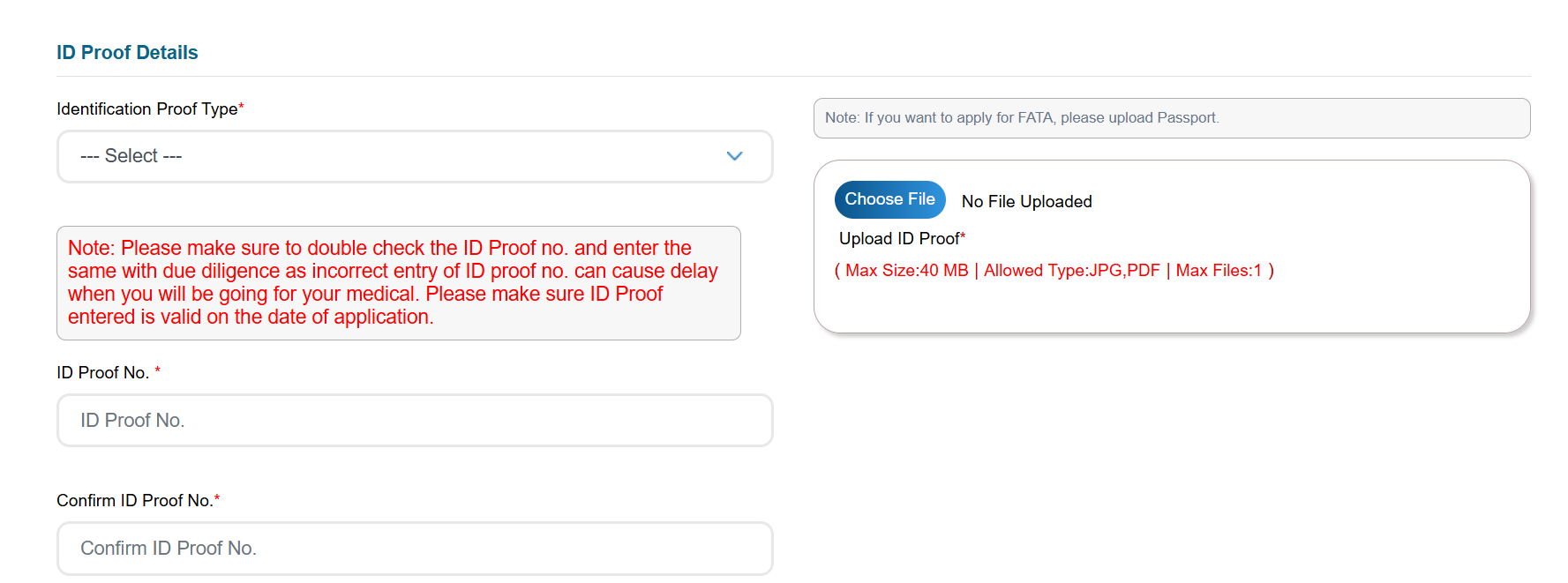
Note: Double-check your ID number before submitting. A wrong digit won't stop your registration, but it can hold up your medical later on. FATA applicants should upload their passport specifically here, not any other ID.
Part 2: Photo and Signature Details
Upload a proper passport-style photo and a scanned signature.
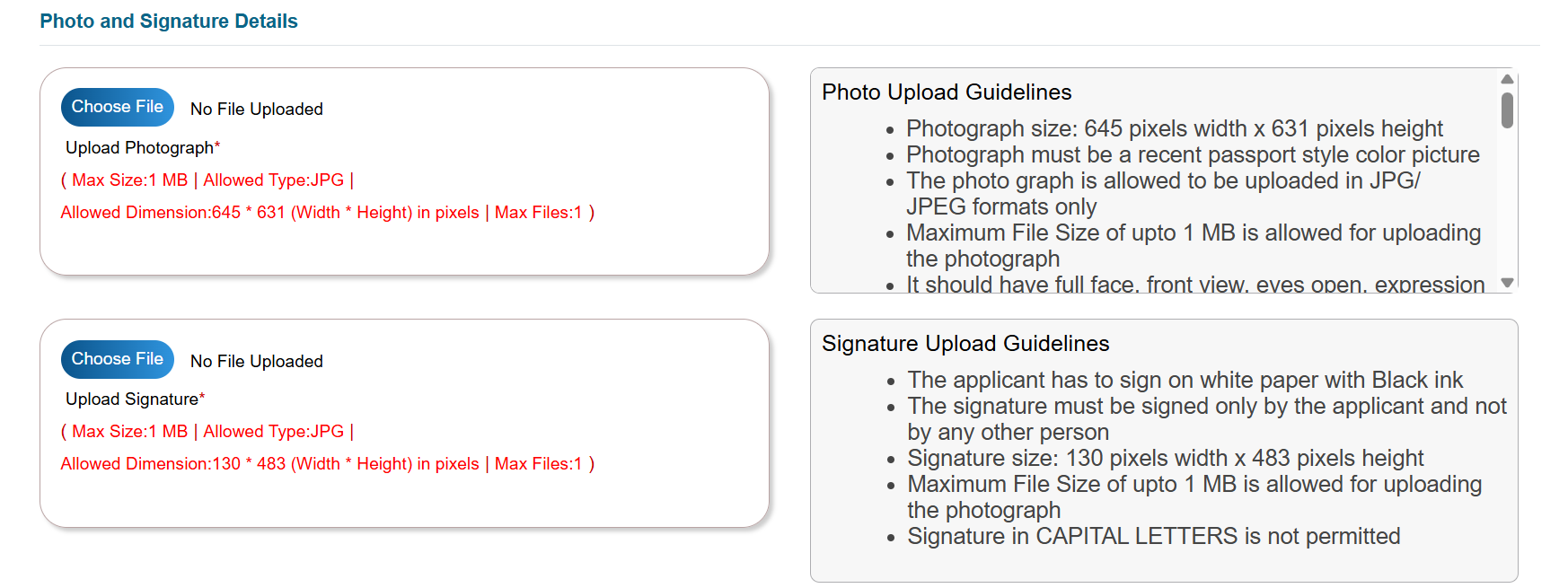
Note on your photo: Must be a recent, full-color passport-style JPG/JPEG, under 1MB, 645×631px. Full head visible top-to-chin, centered, facing forward, natural expression, eyes open and visible, mouth closed, no smiling. Plain light (preferably white) background, even lighting, no shadows, no red-eye. No caps, hats, or sunglasses; religious head coverings are fine as long as your forehead, chin, and both edges of your face are visible. If you wear glasses, tilt your head slightly to avoid glare, and avoid tinted or dark lenses.
Note on your signature: Sign in black ink on plain white paper, in your own hand, not typed or signed by anyone else. No block capitals. Upload as JPG, under 1MB, sized 130×483px.
Part 3: 10th Marksheet
Upload a scanned copy of your 10th marksheet or certificate.
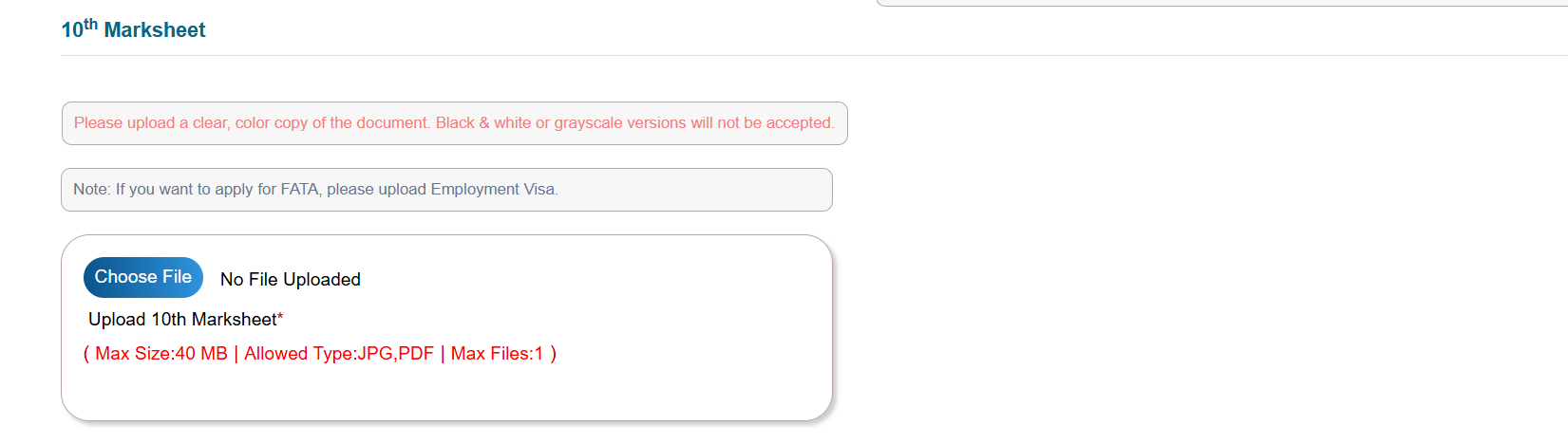
Note: It has to be a clear, color scan. Black-and-white or grayscale copies get rejected outright, even if perfectly legible. FATA applicants also need to attach their employment visa here.
Part 4: Address Proof
Select your proof type from the dropdown:
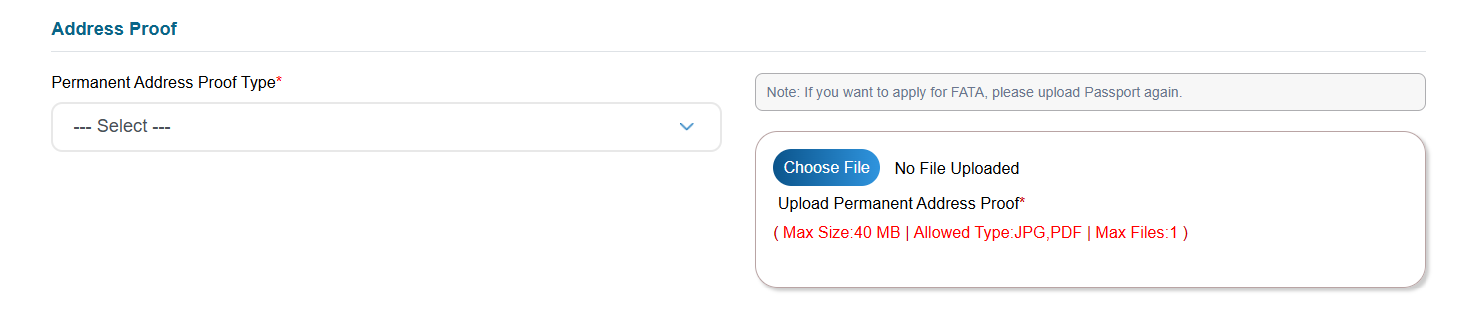
Note: FATA applicants need to upload their passport again here, even if it was already used for ID proof.
Part 5: Creating Your Login Password
Set the password you'll use for all future eGCA logins.
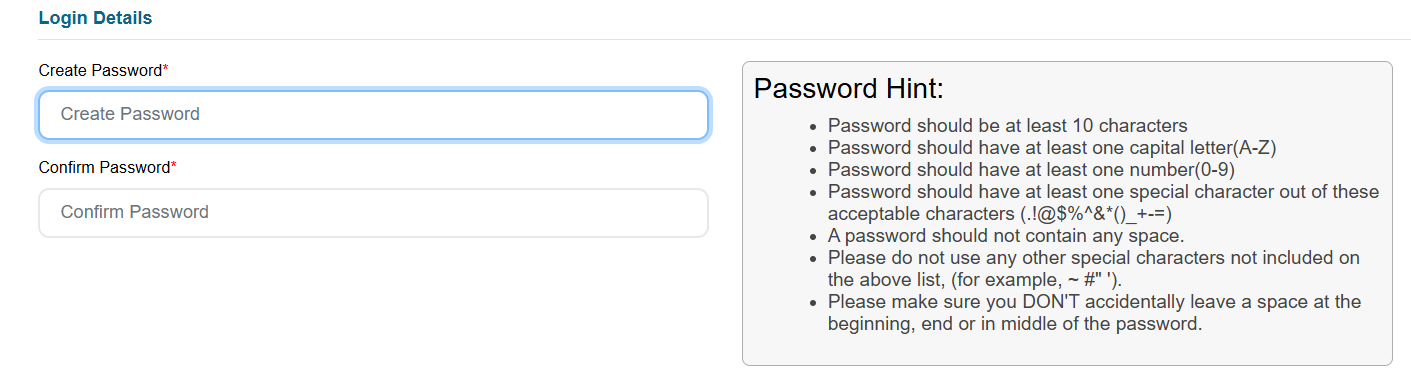
Note: It must be at least 10 characters, with one capital letter, one number, and one special character from the accepted set. No spaces are allowed anywhere in it, including at the start or end.
Part 6: Email ID and Mobile Number Validation
Enter your email and mobile number, solve the CAPTCHA, and request your OTPs.
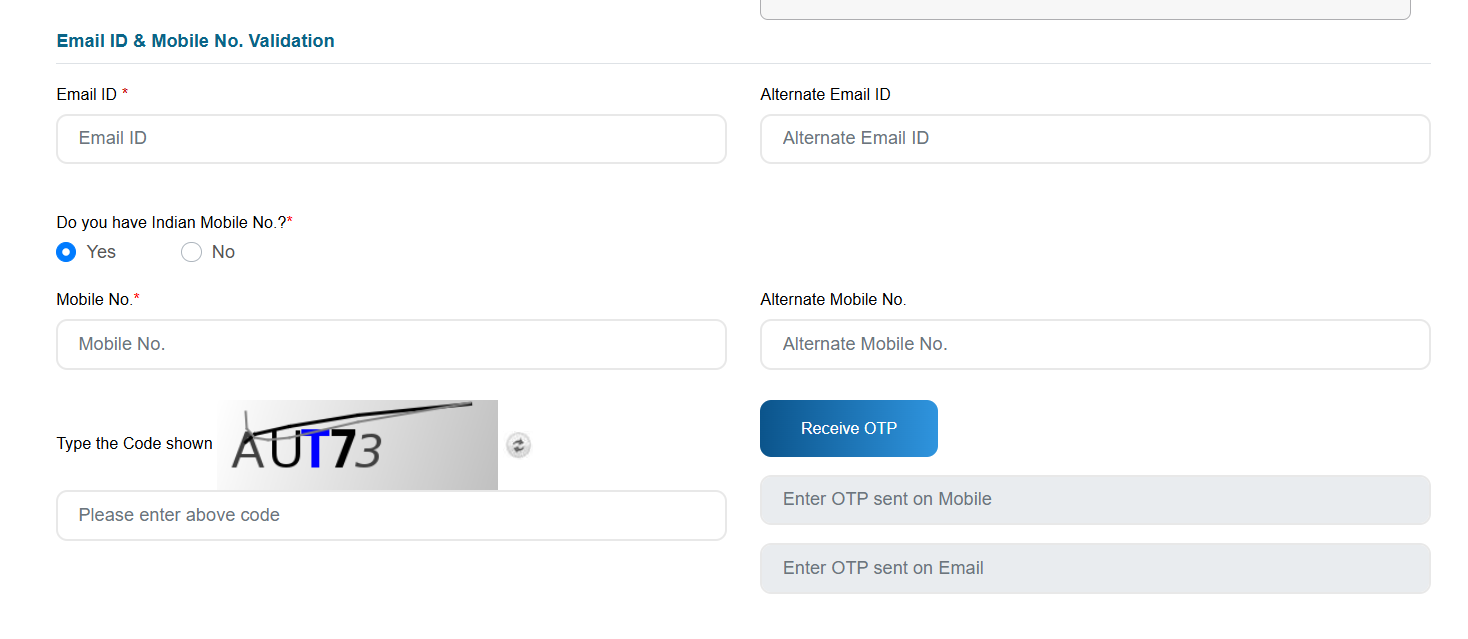
Note: As of 28 July 2025, DGCA introduced mandatory multi-factor authentication across the eGCA portal, so you'll receive two separate OTPs, one by SMS and one by email, and both must be entered before you can proceed. You'll also be asked to enter a CAPTCHA twice: once to receive the OTP, and again just before final submission. That's not a glitch, it's built into the flow. If you don't have an Indian mobile number, there's a separate option for that.
Part 7: Declaration
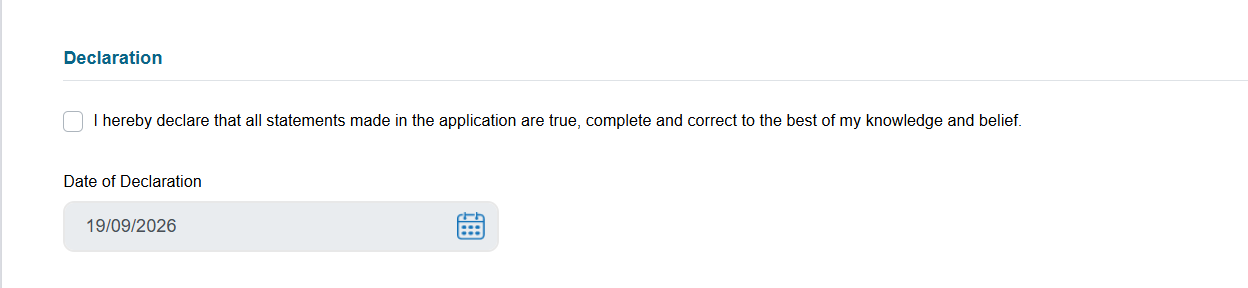
Note: Don't treat this as a formality. If DGCA later finds a mismatch between what you declared and your actual documents, it's treated as a false declaration, not just a data-entry error.
Step 5: Submitting and Receiving Your eGCA ID
Review every field carefully before hitting submit, since corrections after submission can take longer to process. Once your application goes through, your eGCA ID is generated and sent to your registered email, becoming your permanent login for every DGCA service going forward.
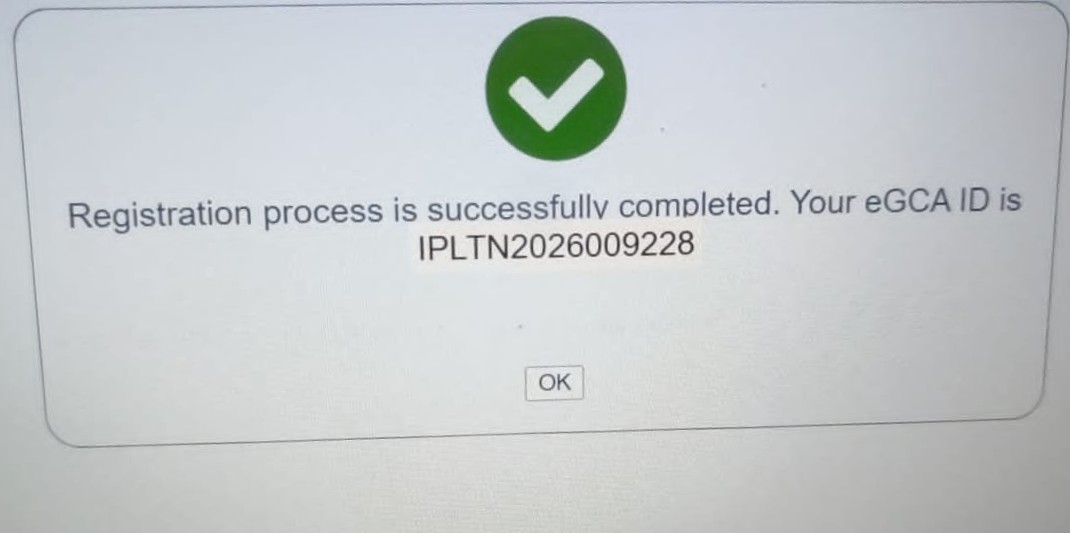
How to Log In to eGCA
Once your eGCA ID exists, logging in is a separate, much simpler process.
- Visit to the eGCA Login page.
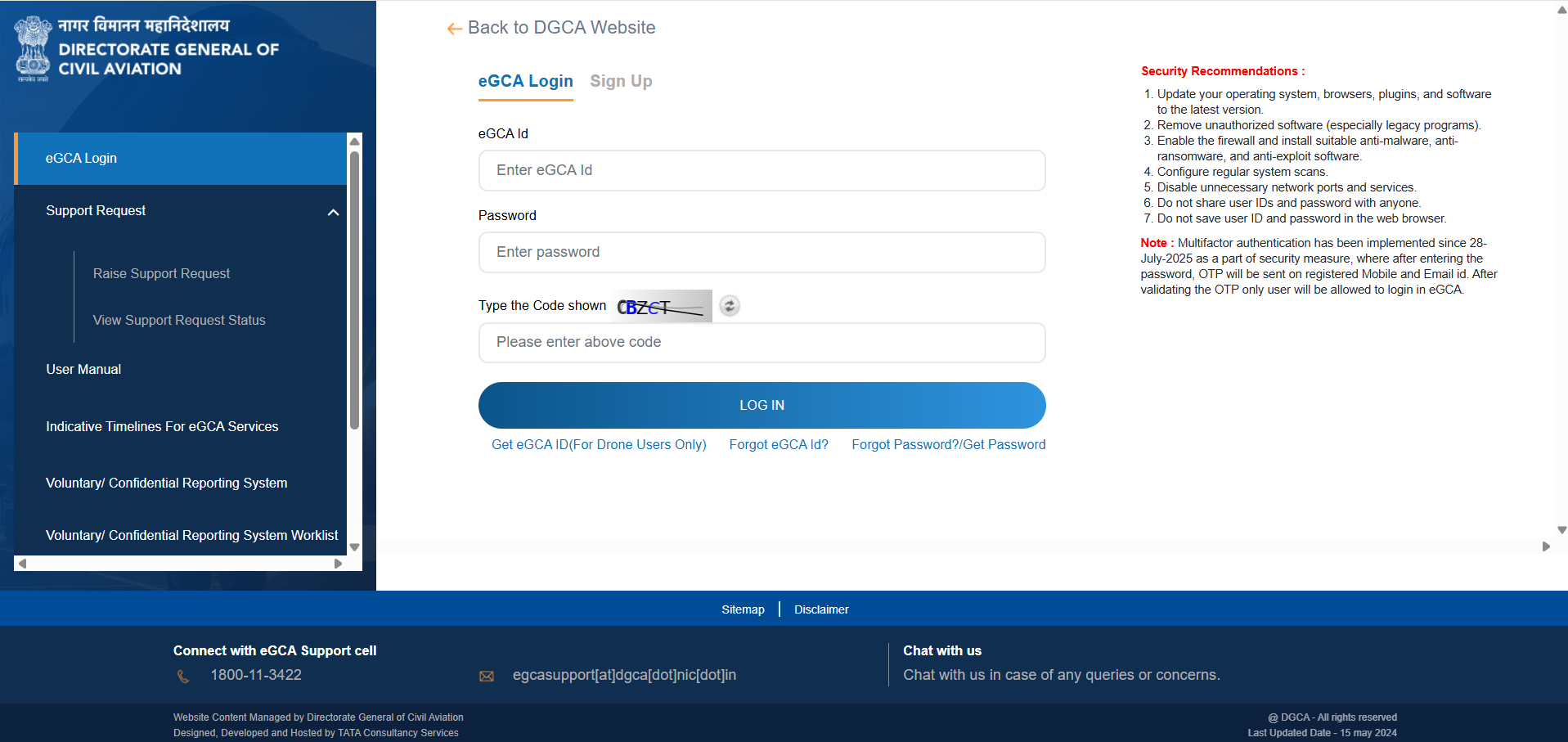
2. Enter your eGCA ID and password and complete the CAPTCHA verification.
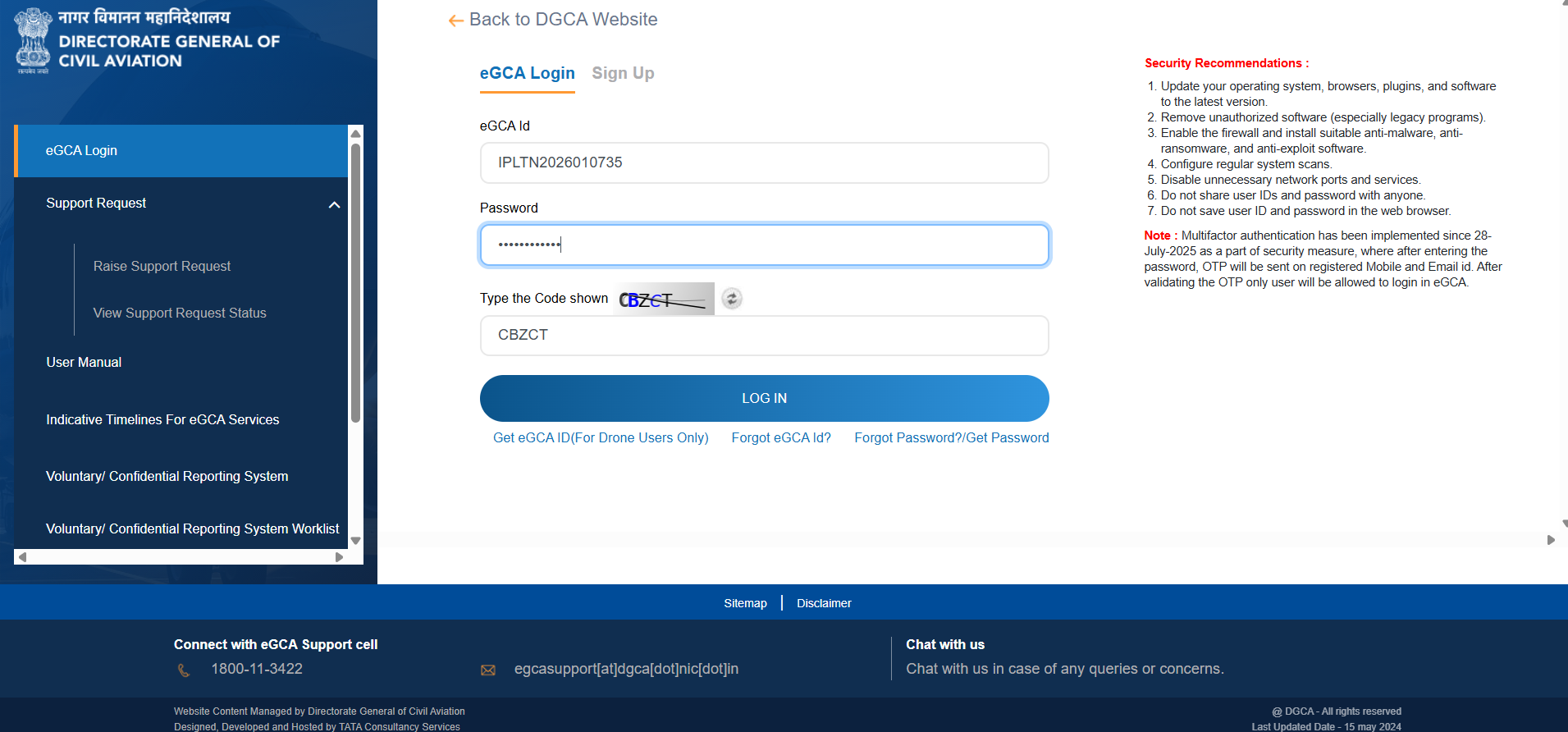
3. Enter the MFA OTP received on your registered mobile number.
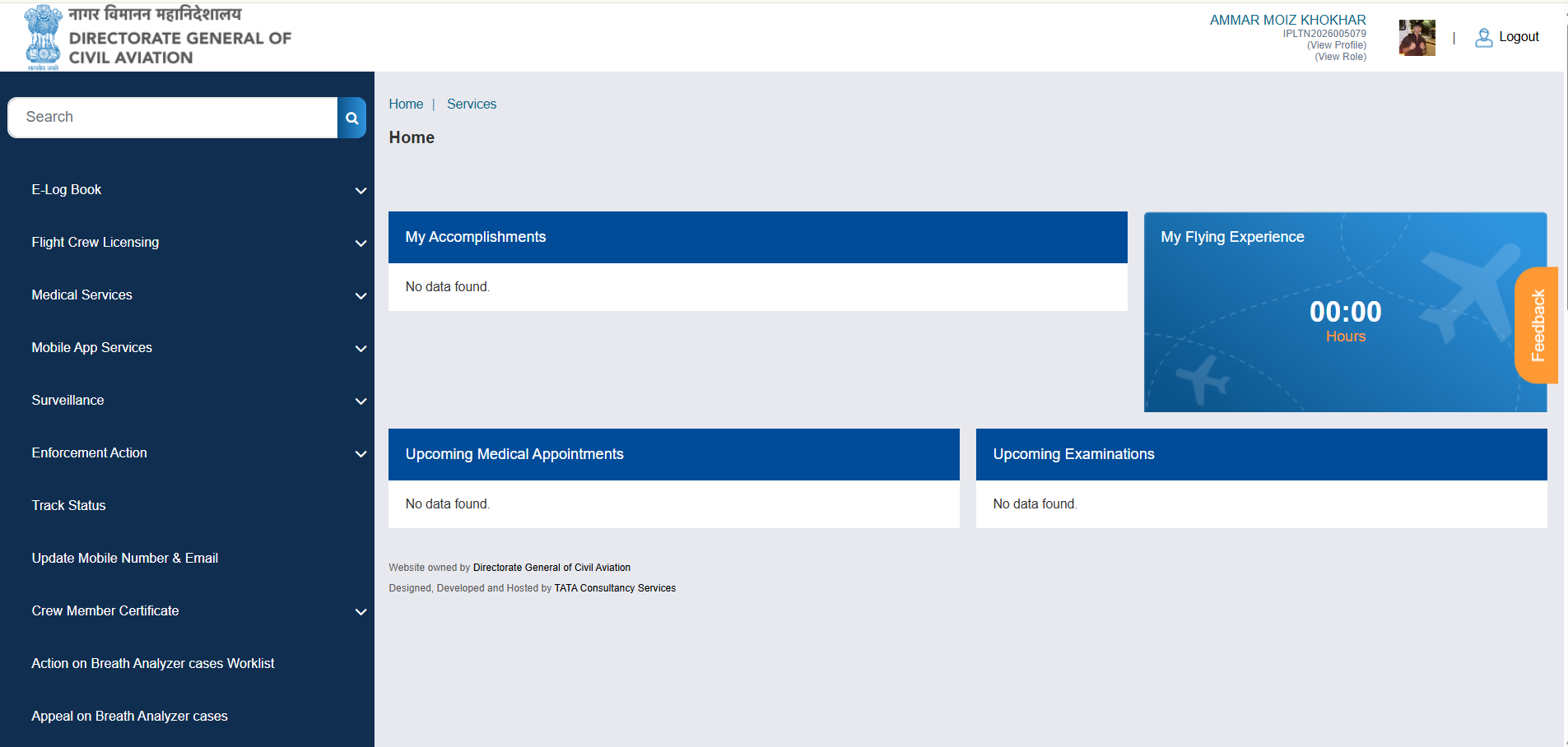
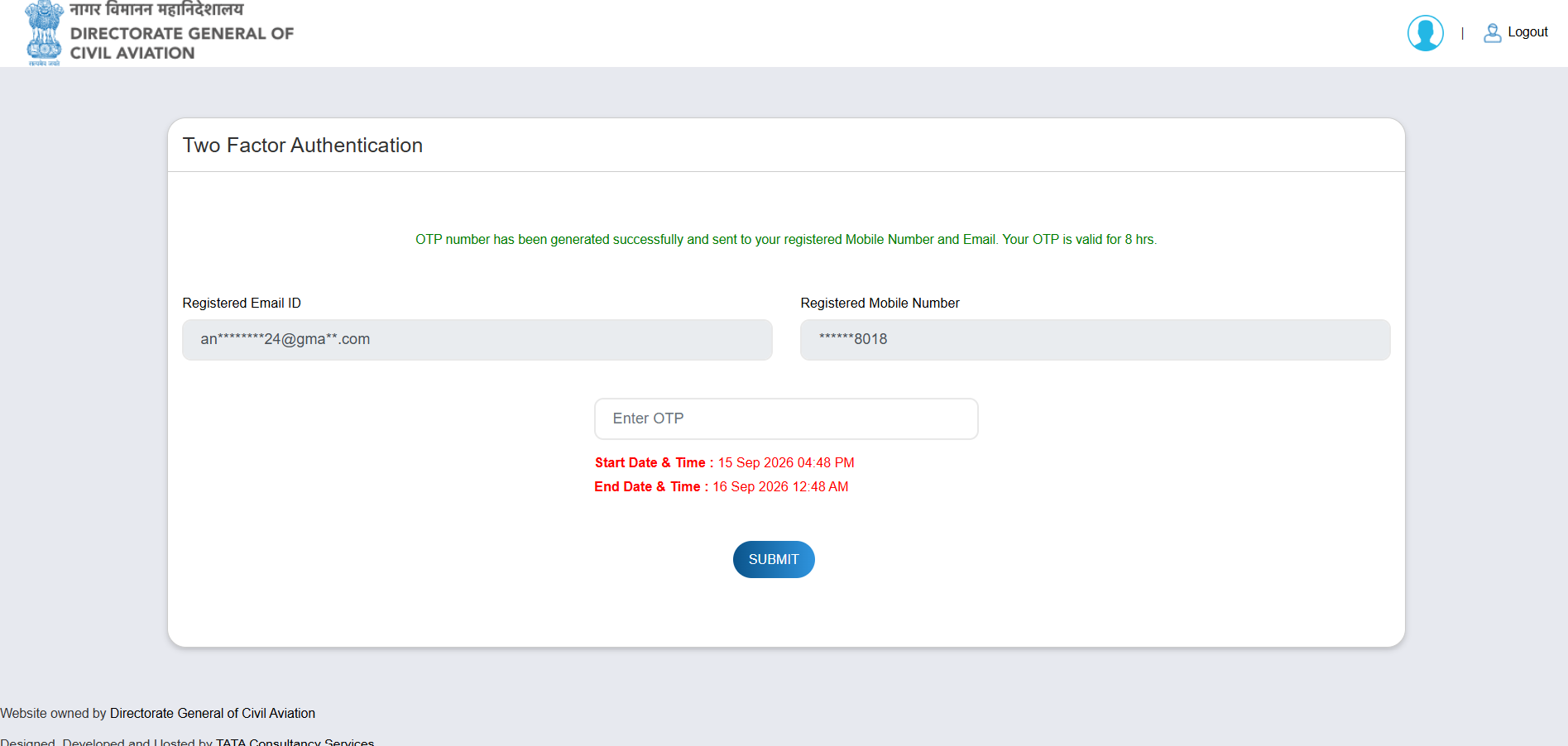 4. Once verified, you will be directed to your eGCA dashboard.
Action | Registration | Login |
|---|---|---|
Purpose | Create a new eGCA ID | Access an existing account |
Frequency | One-time | Every visit |
Requires Documents | Yes | No |
Requires OTP | Yes, during signup | Yes, as part of MFA |
Where You Start | "Sign Up" / New User Registration | eGCA Login page |
Forgot Your Password or eGCA ID?
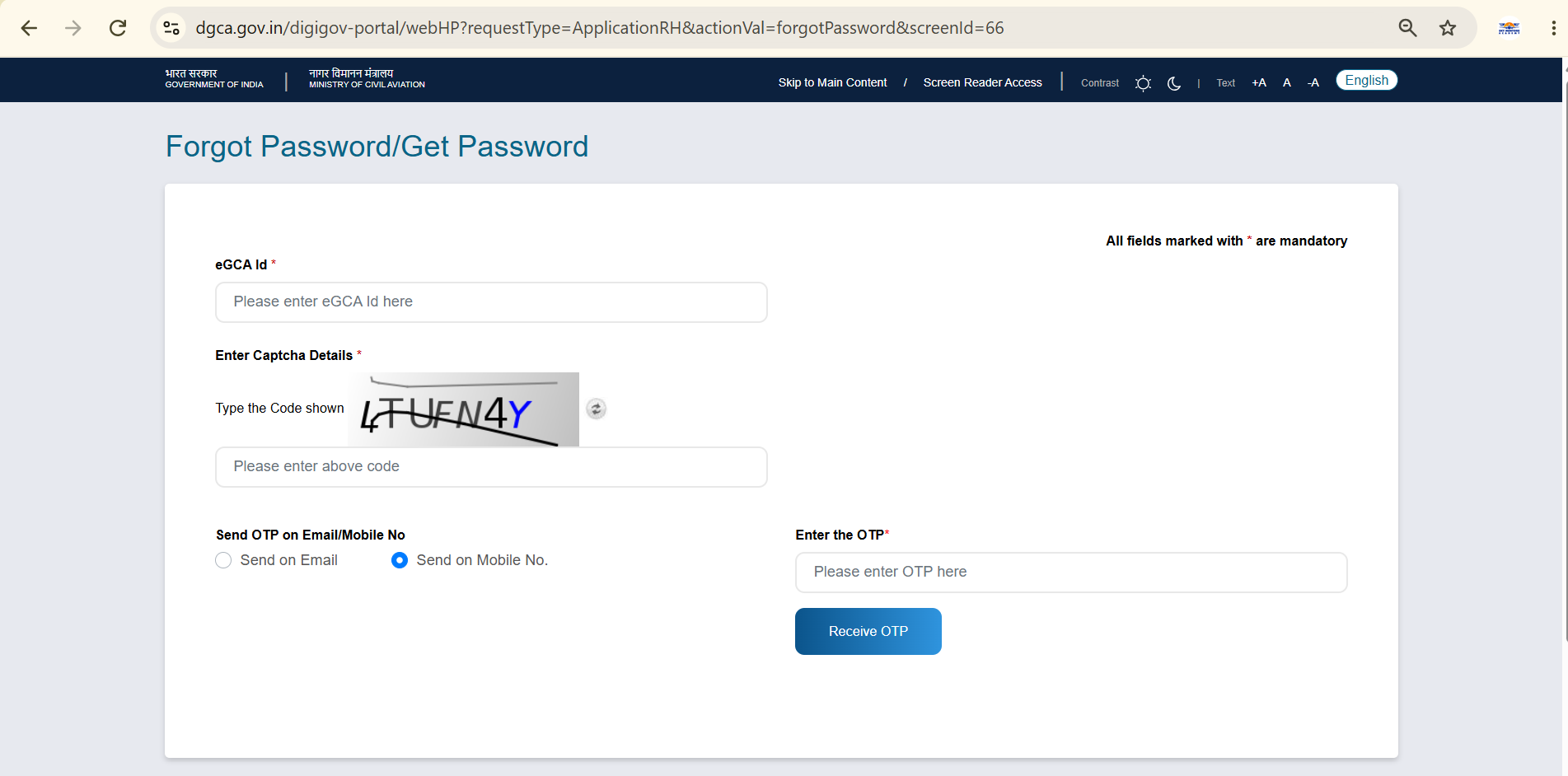
If you've lost access to your account, eGCA has two separate self-service recovery options depending on what you've forgotten.
1. Forgot Password
2. Forgot eGCA ID
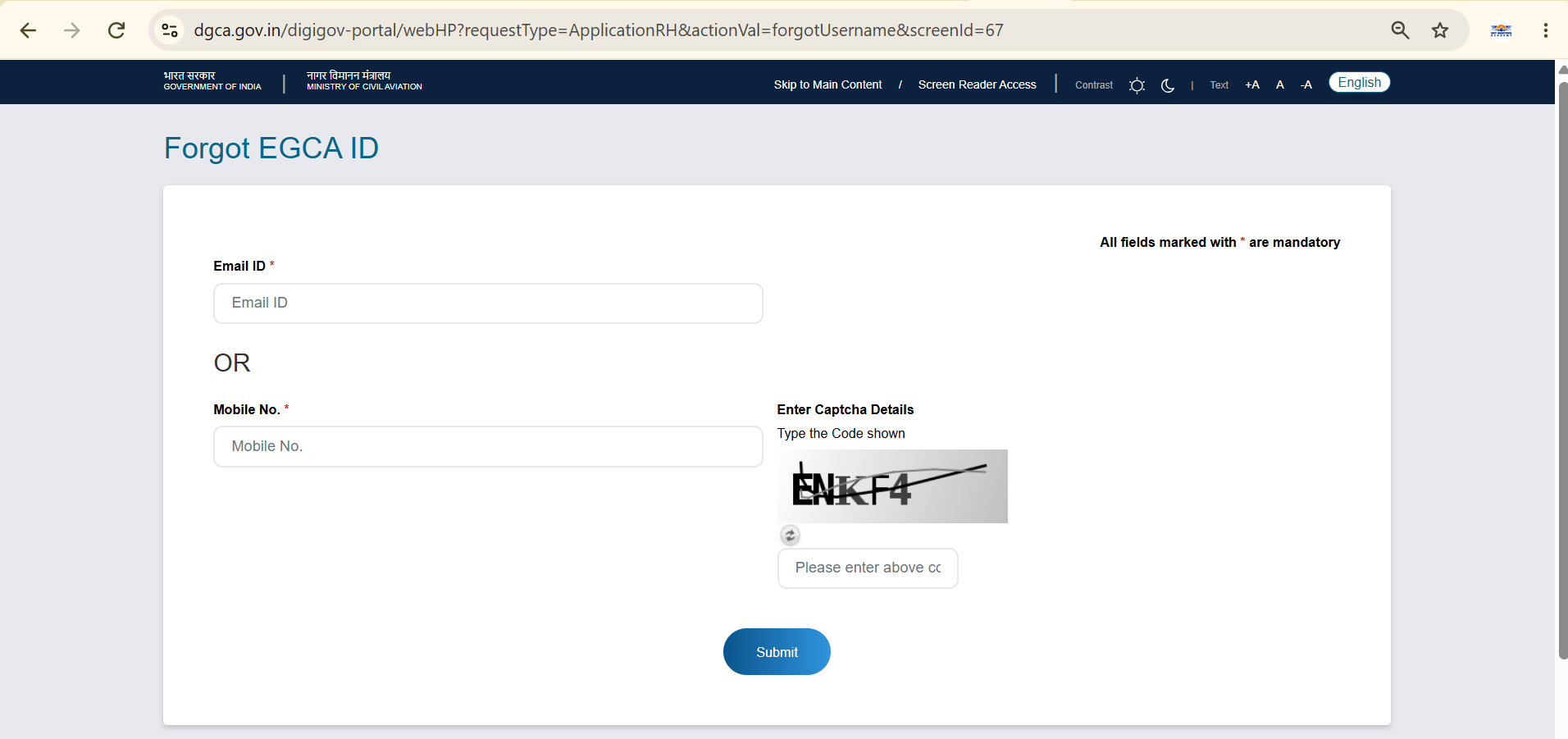
Note: Both eGCA IDs and passwords are case-sensitive, so a failed login isn't always a forgotten password, double-check for stray capitals or spaces first. If repeated login attempts fail, use these recovery options rather than continuing to guess, since too many failed tries can lock your account.
Common eGCA Login and Registration Issues
A handful of problems come up repeatedly for students going through this process, and most have simple fixes once you know what's actually causing them.
"Invalid Credentials" or Account Locked
Repeated incorrect login attempts can lock an account temporarily. Double-check your eGCA ID and password carefully, and if the account does lock, you can raise a support request directly from the eGCA Login page's sidebar, under "Raise Support Request," and track its status under "View Support Request Status.
Logging In to the Wrong Portal (eGCA vs Pariksha)
eGCA and the Pariksha portal serve different purposes; eGCA handles registration, profiles, and licensing, while Pariksha is specifically for DGCA exam scheduling and results. Confusing the two and trying to log in with the wrong credentials on the wrong site is a common early mistake.
Document Rejected or "Email/Mobile Already Registered"
Poor-quality scans, cropped edges, or mismatched details typically lead to document rejection. If you see an "already registered" error, it usually means that email or mobile number was used previously.
OTP Not Received
Check that your mobile number and email are both active. Look in your spam folder for the email OTP. Ensure you are on a stable network. You need to wait a few minutes before requesting a resend.
Password Rejected During Registration
Your password needs to be at least 10 characters, include one capital letter, one number, and one special character from the accepted set, with no spaces anywhere in it. Using an unsupported special character or leaving a stray space at the start or end is a common reason the form rejects it.
Why Choose Sky Mentors for Guidance Through DGCA Registration?
Getting through eGCA registration correctly the first time can save a lot of time, especially with document matching, user-type selection, and the mandatory OTP verification steps all needing to line up properly. If any detail is mismatched, it can mean resubmitting documents or waiting through another verification cycle.
Sky Mentors Academy, one of the best pilot training institutes in India, helps students navigate this process alongside their ground school preparation, catching the documentation and category mistakes that usually slow first-time applicants down. This kind of guidance is especially useful for students pursuing cadet pilot preparation in India, where getting the administrative side right early means more time can go toward the actual flying and academic preparation.
Rather than treating registration as a separate hurdle to figure out alone, students working with Sky Mentors get guidance on it alongside their actual ground school subjects. If you're just starting your pilot journey and want guided support through eGCA registration alongside your ground school subjects, reaching out to Sky Mentors is a practical way to get both handled together, without the trial-and-error most first-time applicants go through.
Conclusion
The eGCA portal is where every Indian pilot's paperwork now lives: medicals, exams, training records, and licensing, all under one digital ID that stays with you for your entire career. Getting registration right the first time, with matching documents and the correct user category, makes everything that follows considerably smoother, from your first medical to your CPL application years later. Rushing through the form or guessing at document requirements tends to cost more time than it saves. For guidance with eGCA registration alongside ground school preparation and your journey to become a pilot in India, get in touch with Sky Mentors Academy.
FAQs
Can I register on eGCA before I start flight training?
Yes. Registration is typically one of the first steps in the process, often done before or alongside ground school, since many DGCA services depend on having an active eGCA ID.
Is eGCA the same portal as Pariksha?
No. eGCA handles registration, medical records, and licensing. Pariksha is a separate portal specifically used for DGCA exam scheduling and results.
What do I do if I registered under the wrong user type?
Contact DGCA support through the official eGCA channels to request a correction, since user type affects which services and applications are available to your account.
How long does eGCA ID approval usually take?
Timeframes vary depending on document verification and portal processing. It is best treated as a variable process rather than an instant one.
What is the full form of eGCA?
eGCA stands for Electronic Governance of Civil Aviation. It is the official DGCA portal for pilot and aviation services in India.
How long does it take to get an eGCA ID?
Processing time can vary based on document review and portal load. It is sensible to apply well ahead of any deadline.
Can I change my mobile number later?
Yes, mobile number updates are generally possible through your profile settings. This typically requires fresh OTP verification.
What is a PMR number?
A PMR is allotted by DGCA to pilots who already hold a prior DGCA medical record. New aspirants without one simply select "No" during registration.
Is the eGCA portal mandatory for student pilots?
Yes. An eGCA ID is required to apply for DGCA medicals, exams, and virtually every other pilot-related service in India.
How to apply for CPL on eGCA?
Once logged in, navigate to the relevant licensing section under your dashboard. Complete the CPL application with your training and examination details.
Why is my eGCA ID showing as inactive after registration?
This depends on whether your PMR number could be system-verified during registration. If it was, your eGCA ID activates immediately with full dashboard access. If it wasn't, the ID is generated in an inactive state, and you'll need to complete a data validation step, reviewing your personal, licence, and medical details, before the account fully activates.
What happens if DGCA finds an issue with my submitted documents?
If DGCA flags a discrepancy during validation, it appears on your dashboard as a "shortfall," along with a notification to your registered email and mobile number. You can view and respond to it directly under the Shortfall Details section, including uploading supporting documents if needed.

